 Budget by Mail
Your budget, straight from your inbox.
Your bank already emails you every time you spend. Budget by Mail turns those alerts into a categorized budget — automatically, in a Google Sheet you own.
What it is
Budget by Mail reads the transaction-alert emails your bank sends, uses AI to pull out the merchant, amount, and account, categorizes each one, and writes it to a Google Sheet with live dashboards. No bank logins, no linking your accounts to a third party, no new app to check. It runs inside your own Google account — a Google Sheet you install — and your transaction history lives only in your Sheet, not on a third-party service. The one exception is AI categorization: the contents of each transaction email are sent to an AI provider (Anthropic by default, or a provider you choose with your own LLM API key) to read and label it — that's the only data that leaves Google. On the shared key those requests pass through our server on the way to the AI; with your own key they go straight to your provider. And if you use the in-app Report a Parsing Issue tool, that transaction's details are sent to us too — the report shows exactly what's included and asks you to confirm first.
How it works
Your bank emails a transaction alert. A Gmail filter drops it into a Budget by Mail label.
Every half hour the sheet reads new alerts, extracts + categorizes each transaction with AI, and de-duplicates.
Rows land in your Transactions sheet; formula dashboards (monthly, annual, cashflow, trends) update themselves.
- Private by design — runs as you, in your account; nothing is stored externally.
- AI categorization — learns your corrections; fix a category once and it sticks.
- Bring your own AI key, or use the shared one — no API account required to start.
- You own the sheet — edit anything; the dashboards are just formulas.
Get started
Budget by Mail is a Google Sheet with the program built into it. You make your own copy — it then lives in your Google account, and runs as you.
Then follow the Instructions tab in your copy. It's the only tab there, and it walks you through the whole thing step by step. Come back here whenever it points you to a section below — that's what this page is for.
Free to try — new copies start on a shared AI key for a couple of weeks, then you add your own. No account to create, nothing to install.
Reference
The setup itself is driven from the Instructions tab of your own copy — that's the single checklist, and it's always in front of you while you work. This page holds the detail each step links out to.
- The permissions screen — what Google asks, and why it names you
- Connecting your institutions — turning on alerts and creating the Gmail filter, bank by bank
- Categories, budgets and Persist — tuning it once transactions arrive
- Help & feedback — ask about a bank, report a problem
The permissions screen — and why it names you
The first time you run Set up / Repair, Google shows this. It looks alarming. Here is what it actually means.
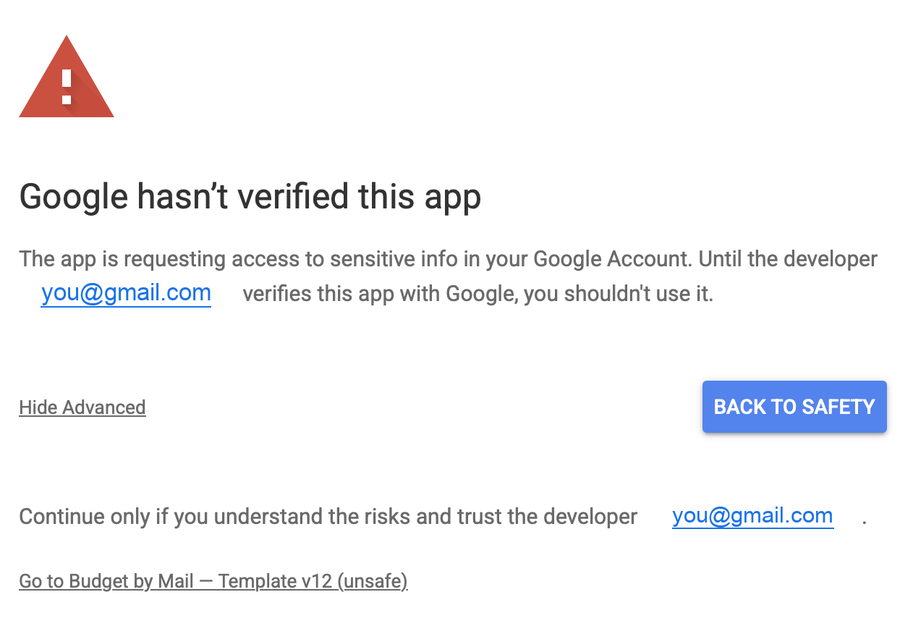
The email address it shows is your own. That is not a mistake. When you made a copy of the sheet, the program inside it became yours — a script in your account, owned by you. Google is telling you that you, as its owner, haven't submitted it for review. You are being asked to approve your own software.
"Verified" is a review Google runs on apps that a company distributes to the public, where the developer is a stranger to you. Budget by Mail isn't distributed that way — every user gets their own copy, so there is no shared app to submit, and this screen will always appear. It's the price of the program living in your account instead of on someone's server.
To continue: click Advanced (shown above as "Hide Advanced" because it's already expanded), then Go to Budget by Mail (unsafe). The word "unsafe" is Google's wording for anything unreviewed — it isn't a judgment about this sheet.
On the next screen you'll see the list of permissions with checkboxes. Tick "Select all" if you're happy with them, then Continue. The program needs all of them together — leave any unticked and it will fail partway through with a confusing error rather than a clear one. Each permission is explained on the Instructions tab of your sheet, and in the privacy policy.
Categories, budgets and Persist
AI categorization works out of the box. New copies use a shared key for a couple of weeks — no account, no API key.
One place for all of it: Budget by Mail → Set up LLM… walks through the trial-or-own-key choice, the provider, your API key and the model, then tests the connection before you finish — so a wrong model tells you immediately instead of half an hour later in a hidden log. It's also how you change a key or model afterwards; re-running it is safe and won't reset anything you didn't change.
Categories & budgets. On the Budgets tab set amounts and periods, and flag payment services (Venmo, PayPal) as Payment Networks so they aren't double-counted. Not Amazon — since July 2026 its order emails no longer list what you bought, so the card charge is the only record of the purchase and needs to count against a budget like any other.
Connecting your institutions (steps 3 & 4)
Two things per institution: (1) make sure it emails you for every transaction — some do by default, some you have to switch on — and (2) add a Gmail filter (Settings → Filters → Create new filter) with From: its sender address that applies the label budget-by-mail/inbox.
Step-by-step for the institutions we've set up (bank menus change — verify in your own account):
Wells Fargo — checking / debit card
Does not email per transaction by default — you must turn on alerts.
- Sign on to Wells Fargo Online and open Manage Alerts.
- Select your checking account / debit card.
- Turn on the purchase & card-activity alerts and set delivery to Email.
Sender alerts@notify.wellsfargo.com. Alerts begin 1–2 business days after setup. Source: Wells Fargo — Debit Card Alerts.
Chase — credit cards
Not on by default — enable transaction alerts per card.
- Sign in at chase.com → Profile & settings → Alerts → Choose alerts.
- Under each card turn on the charge/transaction alerts; for "a charge over $X," set the amount to the lowest allowed so every purchase triggers an email.
- Set delivery to Email. Repeat for each card.
Sender no.reply.alerts@chase.com. Transaction alerts send within minutes. Source: Chase — Account Alerts.
Venmo
Emails you automatically for payments (that one can't be turned off). Just confirm email notifications are on.
- In the Venmo app: Settings → Notifications → Email.
- Make sure payment notifications are enabled.
Sender venmo@venmo.com. Mark Venmo as a Payment Network on the Institutions sheet if you also get bank-side Venmo charges, so purchases aren't double-counted. Source: Venmo — Notification Settings.
PayPal
Emails transaction receipts by default. Verify they're on if you're not seeing them.
- Sign in at paypal.com → Settings (gear) → Notifications.
- Make sure the payment/transaction email boxes are checked.
Sender service@paypal.com. Also mark PayPal as a Payment Network. Source: PayPal — Email notification preferences.
Amazon — read this, it changed
Don't filter Amazon's own emails into the label. On 8 July 2026 Amazon removed item names, quantities and per-item prices from its order-confirmation emails, and from shipment emails too. What arrives now is an order total and a category like "2 Home Improvement items" — nothing that can be turned into itemized spending. Amazon says this is for privacy and to push you to the app.
So Amazon needs no filter at all. Your card's alert for the purchase is the record, and it arrives already — descriptors like AMZN MKTP US*… are recognized and land as "Amazon".
If you set this up before August 2026: open the Institutions tab and make sure Payment Network is unticked for Amazon. It used to be ticked on purpose — the per-item rows were the record, so the card charge was excluded to avoid double-counting. With the item rows gone, leaving it ticked excludes the only record you have, and Amazon spend silently stops counting against any budget. Set up / Repair unticks it for you.
More institutions — same pattern (switch on per-transaction alerts, then filter by sender). Senders marked confirm from email couldn't be verified from a public source, so grab the exact address from your first alert email (and tell us via the form below). Menu paths change — verify in your own account.
| Institution | Alert sender | Where to turn on alerts |
|---|---|---|
| Chase | no.reply.alerts@chase.com | Profile & settings → Alerts → Choose alerts → charge alert → Email |
| Wells Fargo | alerts@notify.wellsfargo.com | Manage Alerts → account → purchase alerts → Email |
| Wells Fargo Bill Pay | Billpay@wellsfargo.com | Sent automatically with Bill Pay |
| Bank of America | customerservice@ealerts.bankofamerica.com | Security Center → Alerts → Purchases and transactions → Email |
| Capital One | capitalone@notification.capitalone.com | Alerts → account → Instant purchase notifications → Email |
| Citi | alerts@info6.citi.com | Alerts & Notifications → Transaction Alerts → Email |
| American Express | AmericanExpress@welcome.americanexpress.com | Account Services → Alerts → "Amount Spent" ($0) → Email |
| Discover | discover@email.discover.com | Profile → account activity alerts → purchase → Email |
| U.S. Bank | usbankalerts@info.usbank.com | Profile & settings → Alerts → transaction alert → Email |
| PNC | pncalerts@pnc.com | Alerts and Communication → Alert Management → card alert → Email |
| Truist | confirm from email | Alerts → verify mobile → transaction over $ → Email |
| TD Bank | confirm from email | Manage Alerts (TD Alerts) → card → purchase → Email |
| USAA | confirm from email | Profile → Account Alerts → transaction → Email |
| Navy Federal | confirm from email | More → Security → Set Up Notifications → Cards → charge → Email |
| Ally | confirm from email | Profile → Alerts → "money leaving account" → Email |
| Barclays | confirm from email | Services → Alerts → transaction → Email |
| Synchrony | confirm from email | Alerts → transaction → Email |
| Marcus (Goldman Sachs) | confirm from email | Alert settings → email on posted transactions |
| Fifth Third | confirm from email | Alerts → Manage Alerts → large transaction (low $) → Email |
| Regions | confirm from email | Customer Service → Alerts → Withdrawals/Deposits → Email |
| Citizens | confirm from email | Settings → Manage Alerts & Recipients → Email |
| KeyBank | confirm from email | Account → Manage Alerts → Transaction → Email |
| Huntington | confirm from email | Alerts → Manage Alerts → transaction → Email |
| M&T | confirm from email | Menu → M&T Alerts → large purchase (low $) → Email |
| Comerica | confirm from email | Enroll Mobile → Alerts → Email → click verify link |
| Fidelity (brokerage) | fidelity@inbox.fidelity.com | Profile → Communication Preferences → activity → Email |
| Schwab (brokerage) | donotreply@schwab.com | Profile → Alert Settings → activity → Email |
| Vanguard (brokerage) | vanguard@e.vanguard.com | Account activity alerts → transactions → Email |
| E*TRADE (brokerage) | confirm from email | Alerts hub → activity → Email |
| Merrill Edge (brokerage) | confirm from email | Alerts → check box per account → Email |
| Robinhood (brokerage) | notifications@robinhood.com | Settings → Notifications → trade/transfer email |
| PayPal | service@paypal.com | Settings → Notifications → payment emails (on by default) |
| Venmo | venmo@venmo.com | Settings → Notifications → Email (payments always email) |
Don't see your institution? Ask us
If your bank isn't listed above, or you got one working that isn't, tell us on the help & feedback page — send the sender address its alerts come from and we'll add it to this guide for everyone.
That's also the place for anything that isn't working, a transaction that was read wrongly, or a question about getting set up.